Dashboard for service technicians
https://www.shaunbent.co.uk/blog/design-handoff-belongs-in-the-bin/
Led the design for a diagnostics and monitoring dashboard on an industrial robotic machine for service technicians and engineers.
This included defining core information hierarchy, systems monitoring and unifying design elements into a cohesive visually informative layer.
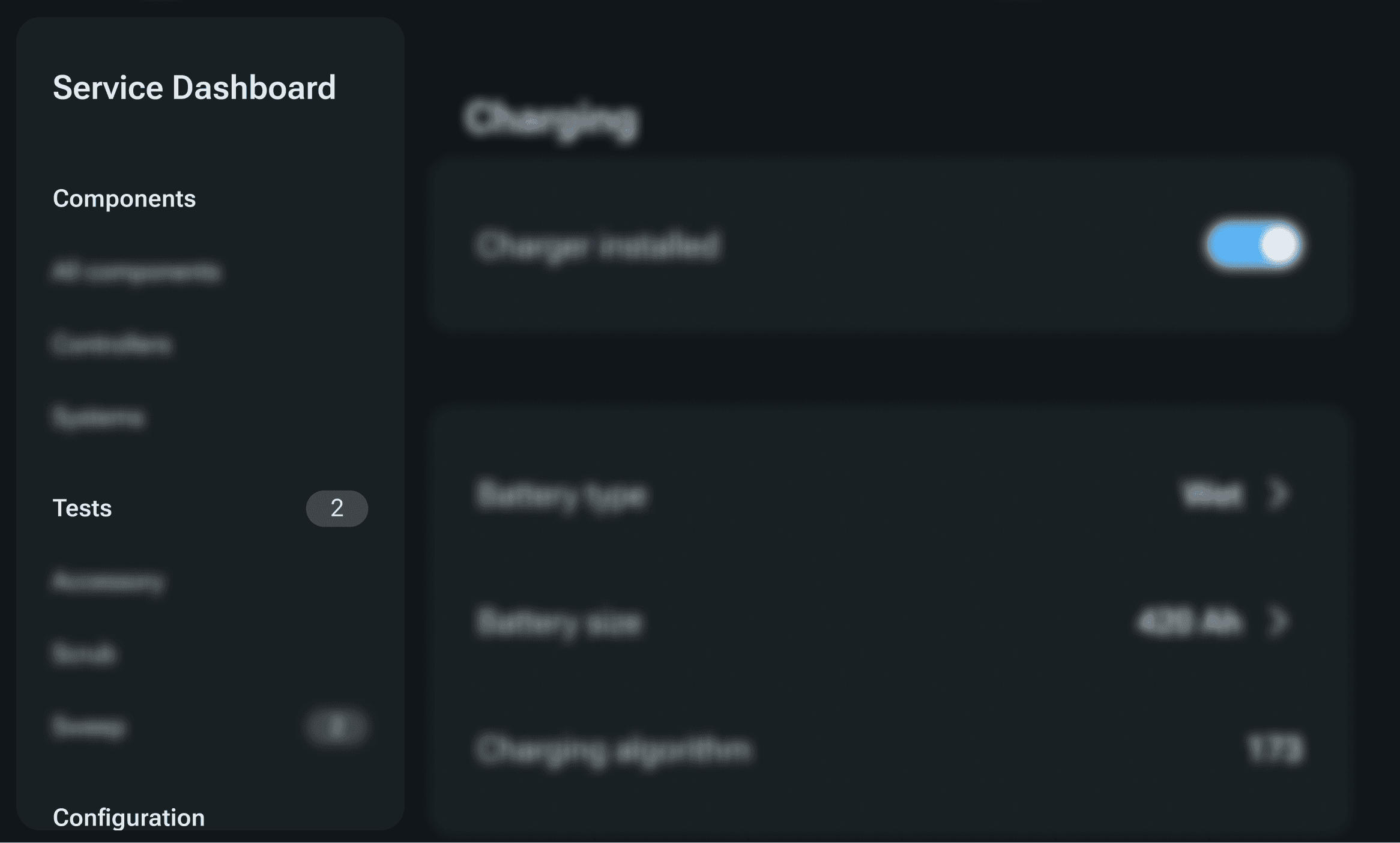
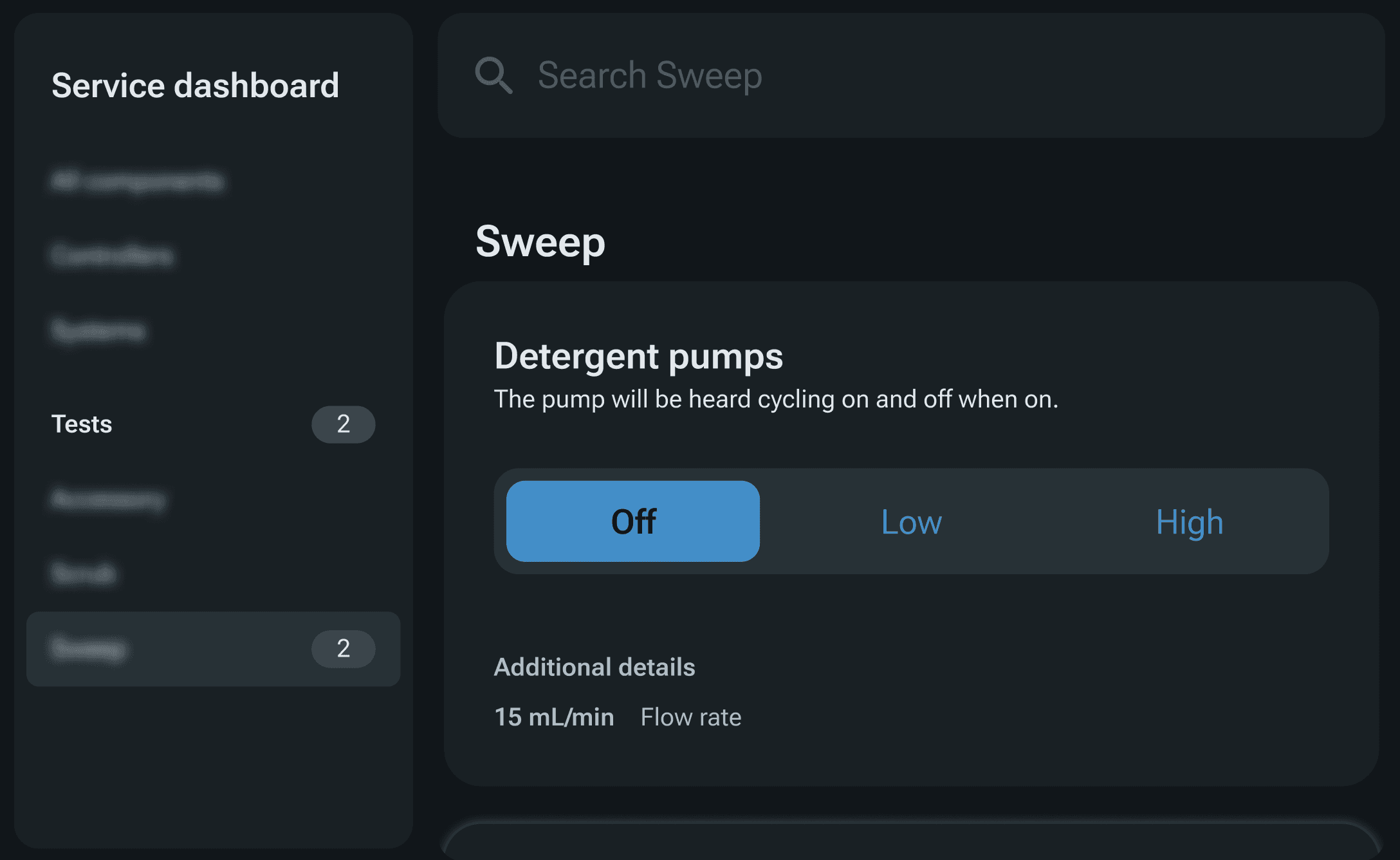
Diagnostic tests provide actual sensor data and expected values, guiding the technicians through each subsystem
The impact of having an intuitive diagnostics interface
The time taken by technicians to troubleshoot issues reduced by 12% because of the real-time system awareness built into the interface and contextually relevant information present at all times.
Less service calls means lower costs for the manufacturer. Guided troubleshooting was a result of the foundational capabilities built into the system. This increased the operator’s ability to self service, reducing the number of service calls by 30% for an issue that earlier had no troubleshooting option.
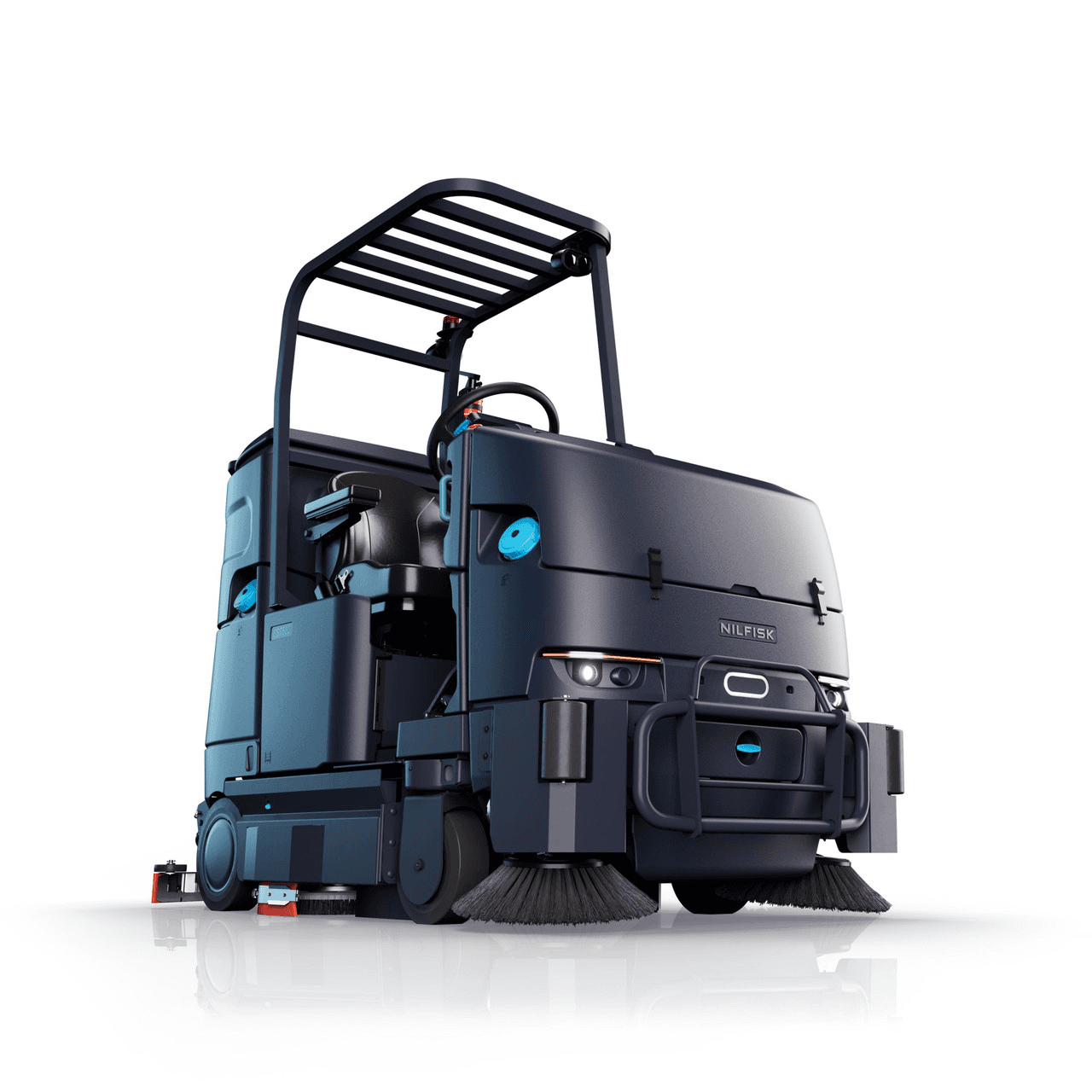
The dashboard lived within the UI for this industrial robotic machine
These robotic machines are used in large, industrial settings - warehouses, airports, universities.
Their UIs have historically been rudimentary for users who are not customers - such as internal engineers who develop the machine, and service technicians who provide support and maintenance.
It was assumed that users knew what the default states were, what values to expect, the connections between systems and controllers, and which subsystems were tied to a specific machine configuration.
Making diagnostics intuitive
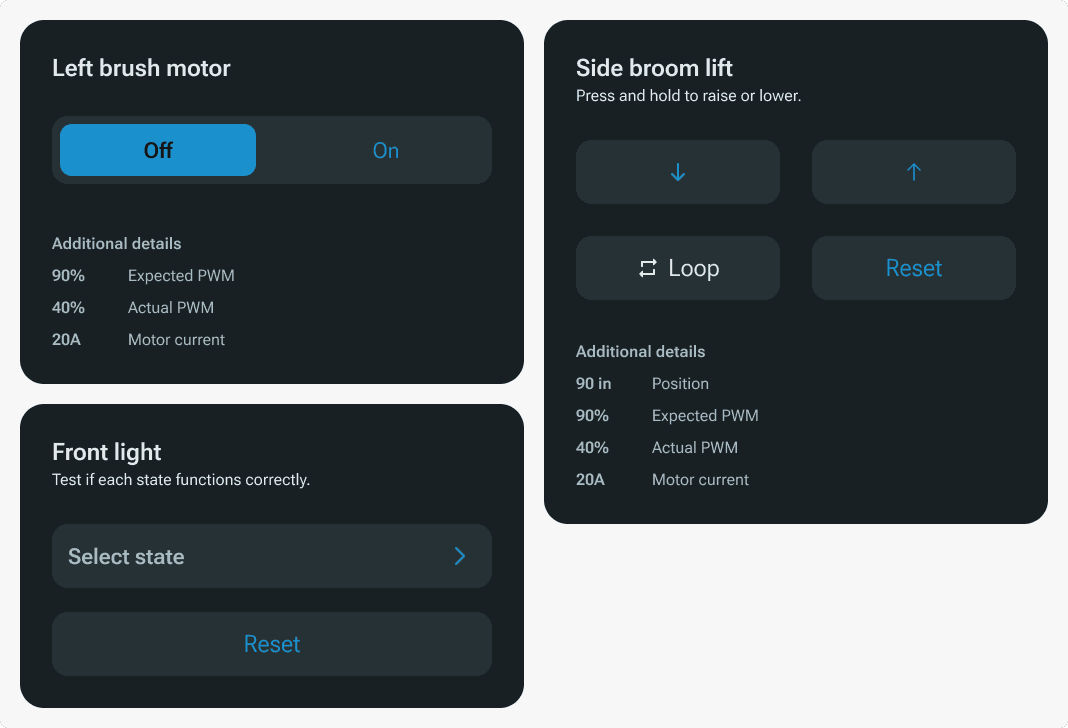
The Service Dashboard provides an overview of the status for all hardware components and subsystems. By displaying sensor data and possible states of every subsystem, the Dashboard allows users to test the system outputs methodically through the machine’s UI.
Like most journeys, it started with a simple question - what if we knew what the machine knows?
Building the design system
The design library and a few building blocks of the design system had been built at this point. These served as the foundation for the data heavy monitoring views we would be building.

GIF with snapshots of the design system, variant parameters and annotations for machine context
The screen was smaller than an iPad mini, making it precious real estate. Every element on the screen had to have a really good reason for being there. Touch elements had to be limited to account for big interaction areas, for gloved users.
Each component built for data viewing was crafted with these constraints in mind.
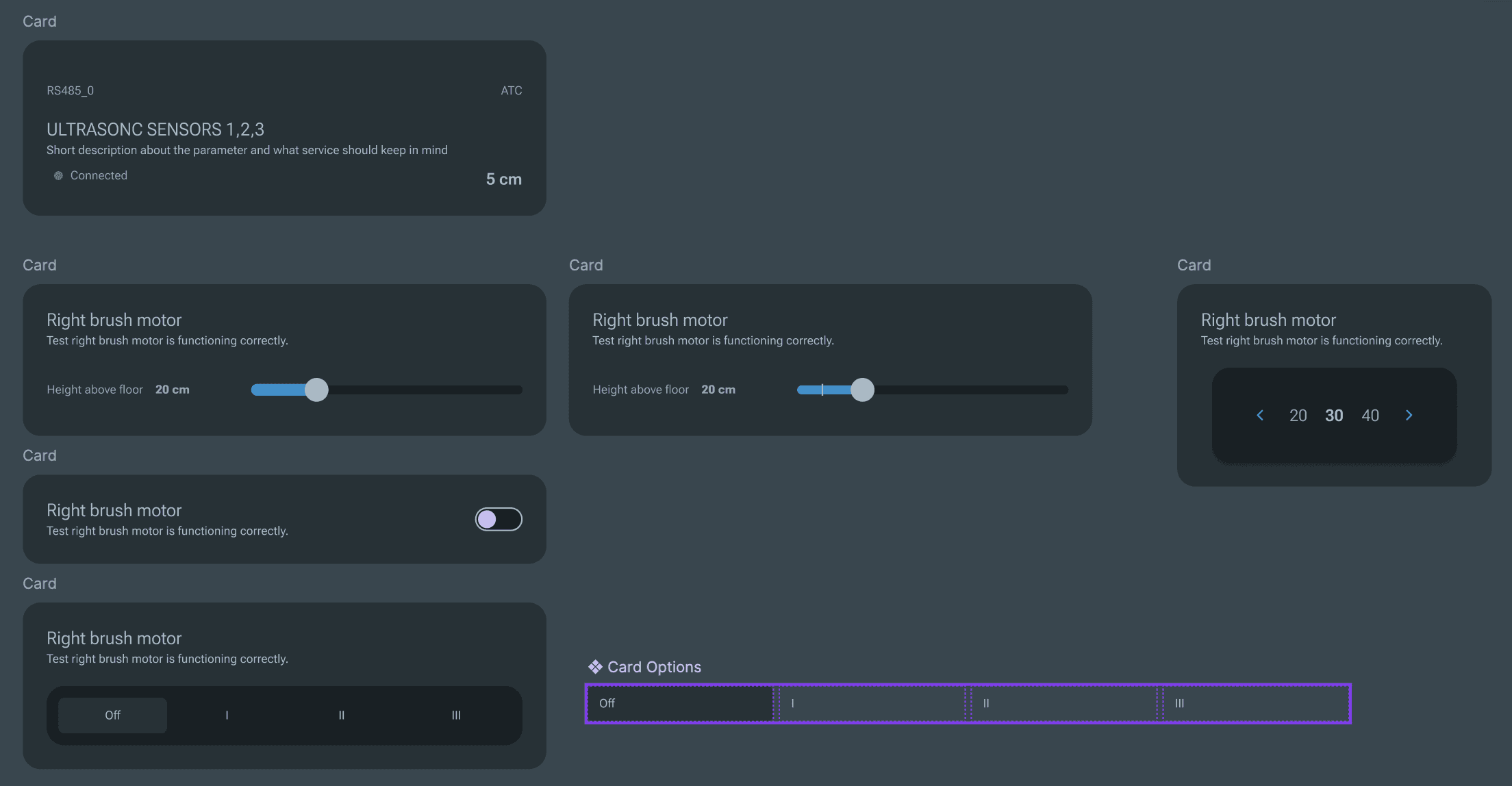
Initial prototypes for Service Test card components
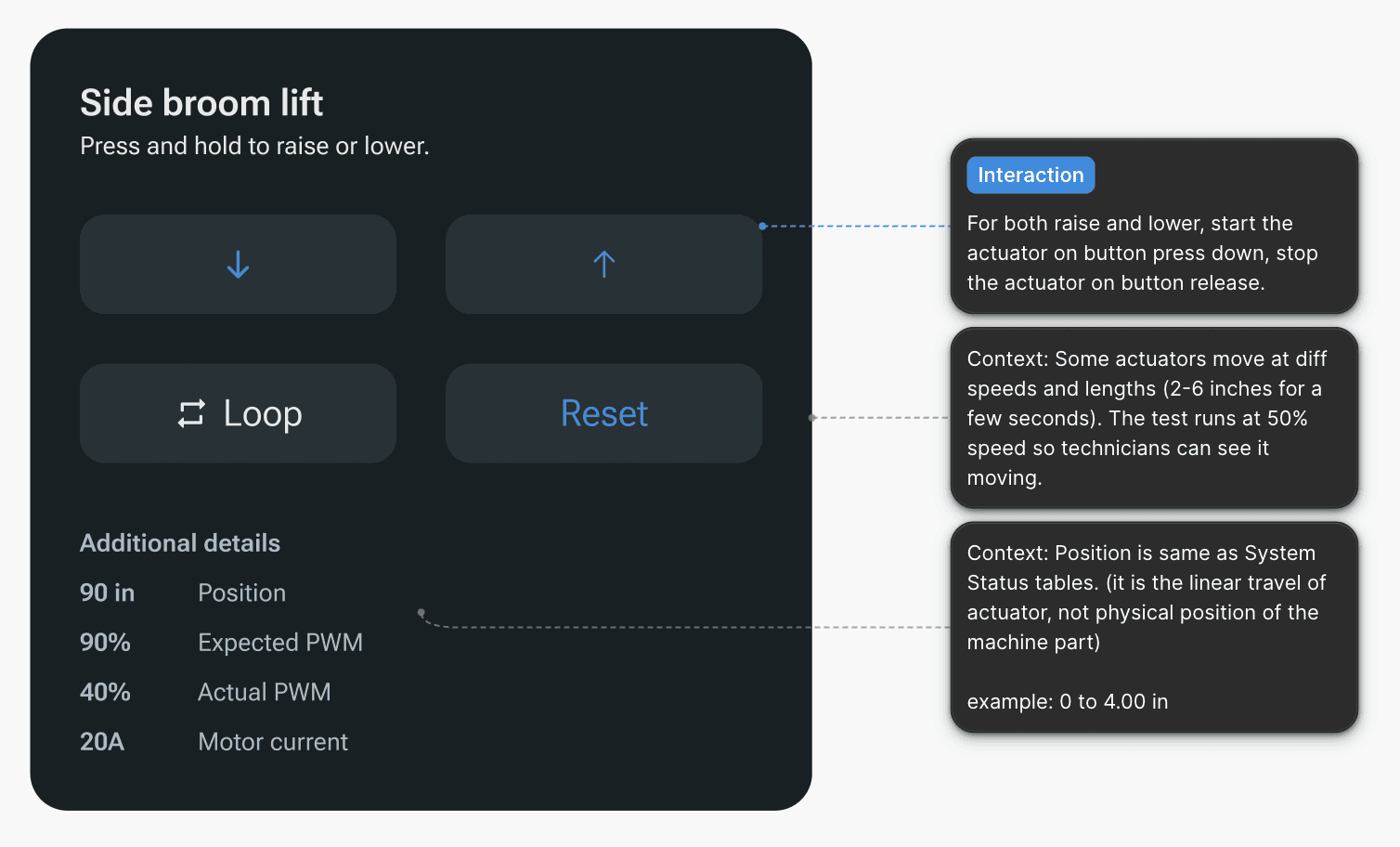
Final components with detailed context and relevant interaction variants
Surfacing hidden data
A lot of sensors and controllers were integrated into every system. The UI could go from showing almost no information to overloading users with all the data being gathered.
Understanding exactly what was relevant for different stakeholders took several conversations.
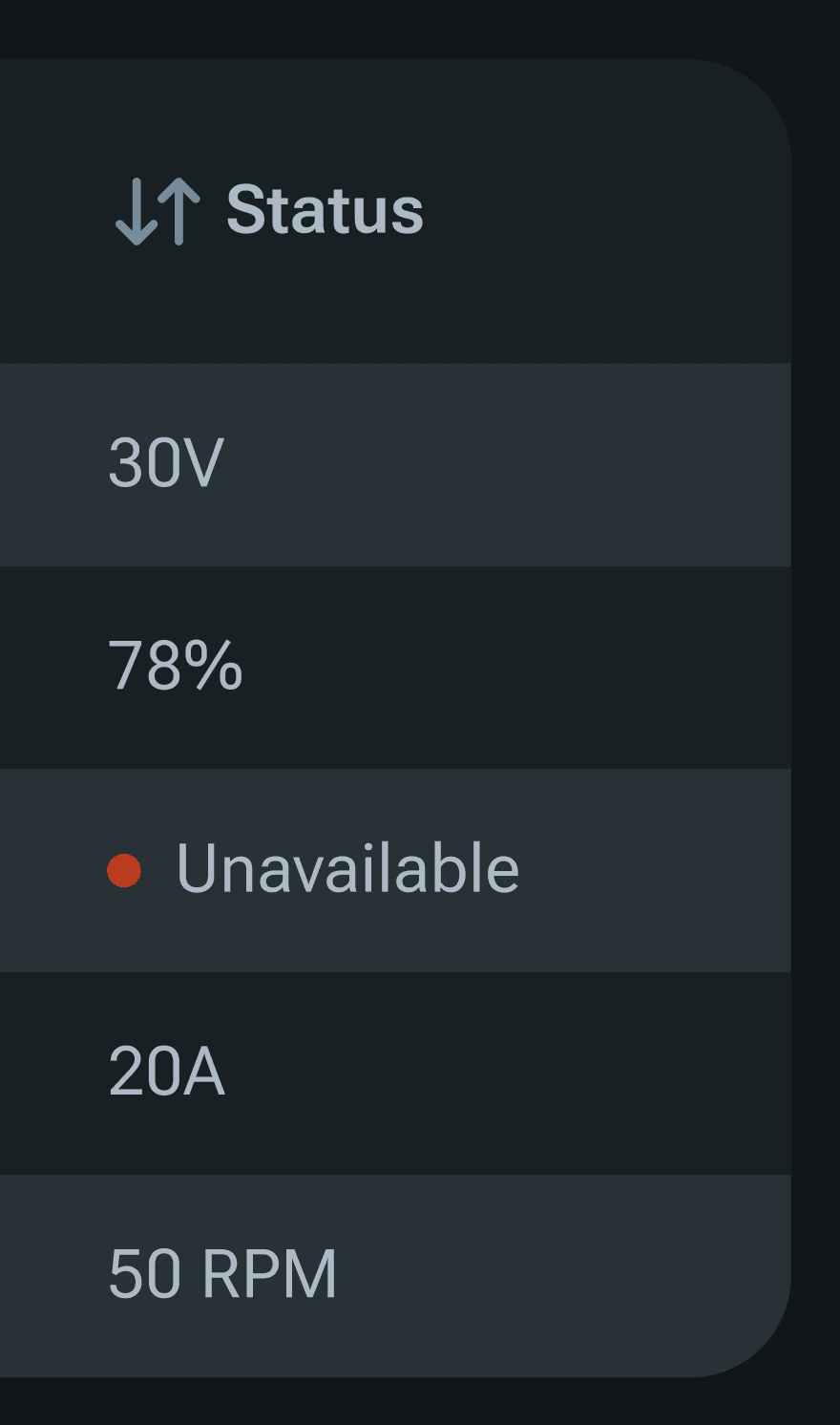
For example: Using color tags initially seemed helpful during prototyping, but it quickly became a UX issue because the color choices did not follow consistent, intuitive mappings.
Service technicians rely on familiar conventions—such as red indicating low values, faults, or “off” states. However, the system sometimes used red to represent high values when those were dangerous, and other times for low values.
This inconsistency breaks fundamental UX principles like predictability, consistency, and cognitive load reduction. When colors are not mapped to values in a stable, logical way, users must constantly re‑interpret what each color means, increasing confusion and the risk of misinterpreting critical data.
Testing all possible states of every subsystem was a critical part of the R&D process. It would also be useful during at larger scale manufacturing site. Service technicians would be able to narrow down the source of a system failure by running tests for all subsystems.

GIF showing non-risky error information pop up during a calibration test
Insights from these conversations led to an information hierarchy for the Dashboard.
Defined hierarchy with sidebar navigation, sections in the main content
I would later go on to build a notifications framework and user flows for every inhibit that could conditionally occur on the machine.
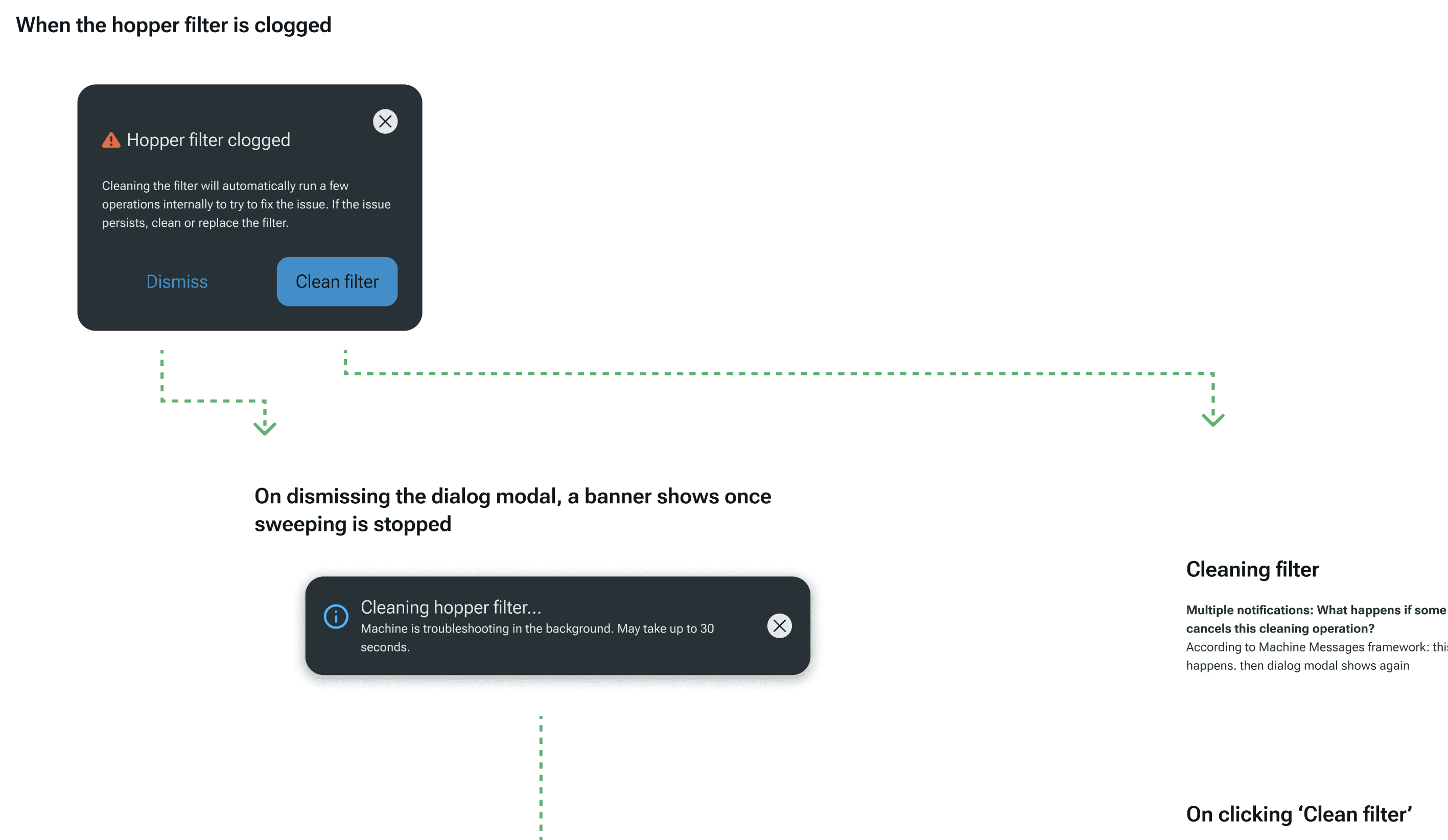
The subsystem level context that each of these inhibit related messages gave operators was fully supported by the level of control the Dashboard provided for troubleshooting by technicians.